Getting started with UI Toolkit
Before you begin
If you are a new user of UI Toolkit, it may be helpful to do the following:
- Read the introductory topics in Script to get a better understanding of what scripts are and why you use them. Also look at the individual script commands, paying special attention to the following commands, which are the ones most commonly used:
.COLUMN
.END
.ENTRY
.FIELD
.INPUT
.SELECT
.WINDOW
- Make some sample scripts and process them using the Script utility. (See Compiling scripts.) You can then use Proto to look at the columns and windows you have just created.
- Become familiar with the following basic subroutines. You can’t create a Toolkit application without them:
U_START
U_FINISH
M_LDCOL
M_PROCESS
I_LDINP
I_INPUT
U_OPEN
U_CLOSE
- Examine the example programs and scripts in this manual.
Developing an application
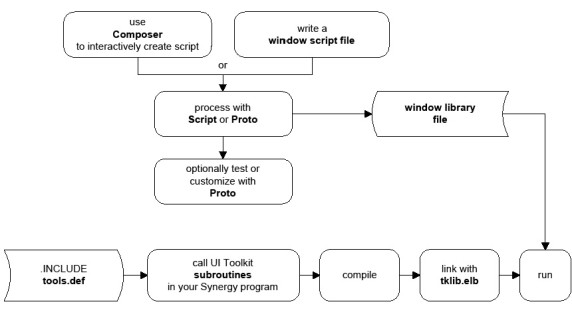
The initial steps you should take to develop applications using UI Toolkit for traditional Synergy are as follows.
|
1.
|
Define your windows and menu columns in a window script file. See Script for more information about writing script files. We suggest you use Composer to create this script interactively. |
|
2.
|
Compile the script files with Proto or Script to build the windows and columns and to store them in a window library. (You can also compile the script files from within Composer.) |
|
3.
|
Test and view the windows and columns with Proto. |
|
6.
|
Link your program with WND:tklib.elb (TKLIB_SH.EXE on OpenVMS). See Linking object modules for information on commands for linking. |
On Windows, you can link against tklib_qcheck.elb, a version of the UI Toolkit library that’s built with more thorough bounds checking (the -qcheck compiler option). All code linked against this version of the Toolkit library must be compiled with -qcheck. See Bounds checking and Compiler options.
On OpenVMS, you must replace SYNRTL.OPT with SYS$SHARE:SYNTKLIB.OPT to link your program. (Using SYS$SHARE:SYNTKLIB.OPT will link in the Toolkit shared image.) Additionally, you must use TKLIB_SH.EXE to link into the Toolkit libraries instead of tklib.elb.
|
7.
|
Run your application. It will use the windows and menu columns stored in the window library. |