This topic includes the following sections:
Before generating a system catalog, do the following:
- Install xfODBC. See xfODBC requirements and installation.
- Define your database’s schema in a repository. See Setting up a repository.
- Set any needed environment variables for file locations, data conversion options, and other system catalog generation options. See System catalog generation issues, Specifying file locations, and Setting catalog generation options.
You can set some system catalog generation options when you generate. See Generating a system catalog from the command line (dbcreate) and Generating a system catalog with DBA.
- (Recommended) Compare repository definitions to the Synergy database files. See Validate, verify, and compare.
You can generate the system catalog from the command line with the dbcreate utility or from the xfODBC Database Administrator (DBA), a program that can also be used to modify the system catalog. We recommend you use dbcreate because it enables you to see messages that document the system catalog generation process.
When you generate a system catalog, dbcreate or DBA will do the following:
- Read file/structure combinations defined in your repository
- Create a system catalog that consists of the ISAM files listed in System catalog
- Create a unique data entry in the system catalog for each file/structure combination in your repository
- Create an initial set of users and groups. Users and groups will be created only if you set the initialization option in dbcreate or DBA. Without the initial set of users and groups, you won’t be able to customize the system catalog. See Initializing users and groups for details on the initial set of users and groups.

To generate a system catalog, xfODBC must be able to locate the error message file. For information, see Specifying the error message file (GENESIS_MSG_FILE).
For information on generating a system catalog or a set of system catalogs for databases that share a repository, see Handling a repository shared by multiple databases.
Generating a system catalog from the command line (dbcreate)
You can run dbcreate from the command line on Windows, UNIX, and OpenVMS. For client/server configurations, dbcreate must be run from the server. Dbcreate is in the connect subdirectory of the main Synergy/DE installation directory. (For information on options used to regenerate a system catalog, see Regenerating the system catalog with dbcreate.)
The syntax for dbcreate is as follows:
dbcreate [option] [...]
Options
-c
Generates a system catalog from a repository. If it’s generated to a directory that already contains a system catalog, it is overwritten. (User and group files, however, are not created or overwritten unless -c is used in conjunction with -p.)
If you use a conversion setup file (-i), tables marked as OUT are omitted from the system catalog.
-x
Updates a system catalog. If the repository has new structures, they are added to the system catalog as new tables. If the repository has structures that are different than the corresponding tables in the system catalog, these tables are updated (unless you specify -u.) User and group files are not affected unless -p is used.
If you use a conversion setup file (-i), tables marked as OUT are not overwritten or removed. Settings in the conversion setup file are applied for tables marked as IN.
-u
Adds new structures as new tables in the system catalog. Tables that are already part of the system catalog are not updated. (User and group files are not affected unless this option is used in conjunction with -p.)
Conversion setup file settings are ignored with -u.
-r repository_main_file repository_text_file
Specifies the location and name of the repository main file and repository text file. If specified, -r overrides RPSMFIL, RPSTFIL, and RPSDAT settings. If not specified, dbcreate uses RPSMFIL, RPSTFIL, and RPSDAT to locate the repository files.
-d target_directory
Specifies the directory where the system catalog will be created. If not specified, the system catalog will be created in the working directory.
-p
Creates user and group system catalog files if they don’t already exist, initializing them with default values. (If user and group files already exist, -n will prevent -p from initializing them.) The -p option does not affect system catalog files other than the user and group files. It may be used with -c, -i, -n, -u, and -x. It can also be used alone after other system catalog files have been created, but dbcreate will attempt to regenerate the system catalog.
For more information, see Initializing users and groups.
-n
Use with -p. Prevents changes to existing users and groups, but enables dbcreate to create user and group system catalog files if they don’t already exist.
-i [conversion_setup_file]
When -i is specified with a conversion_setup_file, it specifies the conversion setup file to use. If you specify a filename without specifying a path, dbcreate looks for the file in the current working directory. This option overrides the SODBC_CNVFIL setting. For client/server configurations, the conversion setup file must be on the server.
If -i is specified without a conversion_setup_file, dbcreate does not use a conversion setup file, even if the SODBC_CNVFIL environment variable is set.
-l log_file
Creates a log file to record dbcreate messages. Log_file specifies the path and filename for the log file. Include the filename extension. If you don’t specify a path, the file is saved to the current working directory. Do not use an environment variable in the path specification; no log file will be generated.
If -l is not specified, messages are printed to the screen.
By default, -l logs only cautions and errors. For verbose logging, use -v with -l.
-v
Verbose logging, which includes information messages in addition to cautions and errors. When used with -l, the log is written to file; otherwise, it is written to the screen. This option can be used with -c, -u, or -x. (Note: If you use -v with -u or -x and a conversion setup file, the log incorrectly indicates that conversion setup file settings are applied. Instead, none are applied if used with -u. If used with -x, only settings for tables marked as IN are applied.)
-? or -h
Displays a list of dbcreate options.
Discussion
On OpenVMS, the dbcreate utility is set up as a verb. So if you pass more than eight parameters to dbcreate, you must enclose the parameters in quotes. Each option counts for one parameter, and each path specification counts for a parameter. The following command, for example, has nine parameters, so they must be enclosed in quotes:
$ DBCREATE "-C -R DATA:RPSMAIN DATA:RPSTEXT -P -D CAT: -l LG.TXT"
You don’t have to specify -c, -u, or -x, but if you do, you must specify only one of these options. If you don’t specify any of them, dbcreate uses the default option, which is -u if the system catalog exists or -c if the system catalog doesn’t already exist.

|
When you first use dbcreate to generate a new system catalog from your repository definitions, you must use the -p option to initialize users and groups. This command creates user and group files (sodbc_users.* and sodbc_groups.*) along with other system catalog files. Without these files, there is no user or password validation when connecting to the database, and all connected users have read-only access to all tables. Be sure to generate these files and keep them with the other system catalog files. |
In the following examples, the repository files are named rpsmain and rpstext and are located in a directory defined by the environment variable DATA. The system catalog files will be created in a directory defined by the environment variable TARGET.
On Windows and UNIX:
dbcreate -c -r DATA:rpsmain DATA:rpstext -p -d TARGET:
On OpenVMS:
$ DBCREATE -C -R DATA:RPSMAIN DATA:RPSTEXT -P -D TARGET:
Generating a system catalog with DBA
|
|
We recommend that you run dbcreate from the command line to generate a system catalog rather than using the DBA program because dbcreate enables you to see messages that document the generation process. |
For client/server configurations, DBA must be run from the server.
| 1. | Start DBA by opening Windows Control Panel, selecting Synergy Control Panel, and clicking “xfODBC DBA”. Or start it by typing the following at a Windows or UNIX prompt: |
dbr SODBC_DBA:xfdba.dbr
To open DBA from an OpenVMS prompt, type the following:
$ RUN SODBC_DBA:XFDBA.EXE
| 2. | Select Catalog > Generate. (For information on using the menus and windows in DBA, see DBA basics.) |
If you have not yet opened a system catalog, a window is displayed with the following message:
No system catalog connected.
| 3. | Click OK or press enter. The Generate System Catalog window is displayed. (See figure 1.) |
|
|
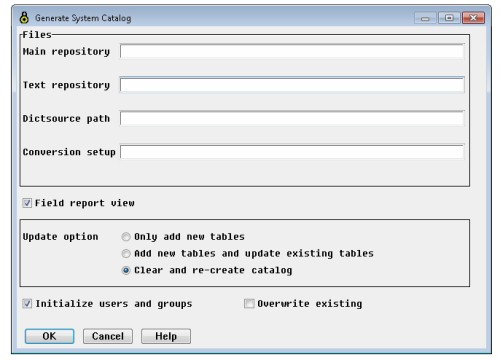
| 4. | Enter or modify data in the fields as instructed below: |
Main repository
Enter the name and location of your repository main file (for example, rpsmain.ism). If the RPSMFIL environment variable is set, this field is automatically populated with the RPSMFIL setting (a path and filename). If RPSMFIL is not set, but RPSDAT is, this field is automatically populated with the RPSDAT setting (a path) and the rpsmain.ism filename.
Text repository
Enter the name and location of your repository text file (for example, rpstext.ism). If the RPSTFIL environment variable is set, this field is automatically populated with the RPSTFIL setting (a path and filename). If RPSTFIL is not set, but RPSDAT is, this field is automatically populated with the RPSDAT setting (a path) and the rpstext.ism filename.
Dictsource path
Enter the directory in which you’d like to place the system catalog files. If you’re regenerating a system catalog and you used the -c command-line option when starting DBA, this field displays the path specified in the dictsource line of the connect file.
Conversion setup
If you’re regenerating an existing system catalog and you want to use a conversion setup file as input, enter the path and filename. If you’ve set the SODBC_CNVFIL environment variable, DBA automatically populates this field with the SODBC_CNVFIL setting. Clear the field (or leave it blank) if you do not want to use a conversion setup file. For client/server configurations, the conversion setup file must be on the server.
Field report view
Clear this option if you want DBA to ignore repository report view flag settings and include all fields—both viewable and non-viewable. Select this option if you want DBA to omit fields with report view flag settings of non-viewable. Note, however, that fields defined as keys or tags in Repository are always included in the system catalog.
Update option
If you’re generating a new system catalog, leave the default option, Clear and re-create catalog, selected. (This isn’t the default if you opened a system catalog before step 2.)
- To update a system catalog by generating only tables that do not already exist, select “Only add new tables.” Existing system catalog files are not changed. (This is equivalent to running dbcreate with the -u option.)
- To update a system catalog based on changes to the repository, select “Add new tables and update existing tables.” This option overwrites existing tables in the system catalog, and it adds any new table definitions. By itself, it does not create or overwrite user or group files. If you use a conversion setup file, tables marked as OUT are not overwritten or removed. (This is equivalent to running dbcreate with the -x option.)
- To clear the system catalog and then regenerate it, select “Clear and re-create catalog”. This option creates tables in the system catalog as they are defined in the repository. If you use a conversion setup file, tables marked OUT are omitted from the system catalog. (This is equivalent to running dbcreate with the -c option.)
Initialize users and groups
Select this option to create or restore the default set of users and groups. If you select this option and do not select “Overwrite existing”, DBA creates the default set of users and groups only if the system catalog has no users and groups. However, if you select this option and “Overwrite existing”, DBA creates the default users and groups, even if the system catalog already has users and groups. In this case, DBA regenerates the sodbc_users and sodbc_groups files in the directory specified as the dictsource path in the connect file, and all changes you’ve made to users and groups are lost. For information on the default set of users and groups, see Initializing users and groups.
|
|
When you first generate a new system catalog from your repository definitions, you must use the “Initialize users and groups” option, which creates user and group files (sodbc_users.* and sodbc_groups.*). Without these files there is no user or password validation when connecting to the database, and all connected users have read-only access to all tables. Be sure to generate these files and keep them with the other system catalog files. |
Overwrite existing
Select this option to overwrite existing users and groups; all changes you’ve made to users and groups will be lost. This option is available only when “Initialize users and groups” is selected.
| 5. | Click OK or press enter to start the generation. |
Unless an error occurs, an information window will open and display the message “System catalog generated.” If there is an error, a log file (ConvErrs.log) will be created in your TEMP directory.
| 6. | Make sure the system catalog has a table for each structure you want included. |